


Crafting stories in ScratchJr is a magical way for kids to explore their creativity and imagination. With its colorful and easy-to-use tools, children can bring their ideas to life by making characters move, talk, and interact in fun scenes.
ScratchJr helps kids learn important skills like critical thinking, problem-solving and sequencing events while they create their own adventures. It’s a simple and exciting way for children to express themselves and share their stories with the world.
By combining animations, dialogue, and interactive elements, children can build a story using ScratchJr. Here’s how to approach it step-by-step:
1. Plan Your Story
- A few lines for each character.
Characters:
- A dog and a helpful bird.
Setting:
- A park, a forest, and a home.
Plot:
- A dog gets lost, meets a bird who helps, and finds its way home.
Dialogue:
- Dog: (Looking around): “I’m lost! Can someone help?”
- Bird (flies in): “I’ll help you find your way.”
- Bird (both walk in forest): “Let’s find the way out.”
- Dog: “Thank you, bird!”
2. Create Characters
Add or Draw Characters:
- Tap the + button to choose characters from the library or draw your own.
- Modify characters to match the story (e.g., a dog with a red collar or a bird with a hat).
Give Personality:
- Use speech bubbles to show thoughts or dialogue.
- Use different sizes and movements to indicate emotion (e.g., shrinking for fear, growing for confidence).
Choose Backgrounds
- Tap the background icon to select or draw a setting for each scene.
- Use multiple pages to represent different locations.
- Example: Page 1 – A park, Page 2 – A forest, Page 3 – A cozy home.
4. Build Scenes with Code
Use ScratchJr’s blocks to bring the story to life:
Motion Blocks:
- Make characters walk, jump, or glide.
- Example: The dog moves to the center of the park.
Sound Blocks:
- Add sound effects or record voices for narration.
- Example: A barking sound for the dog.
Start Events:
- Trigger animations when the green flag is tapped or a character is tapped.
- Example: When the dog is tapped, it says, “I’m lost! Can anyone help?”
5. Add Transitions Between Scenes
- Use the Go to Page block to move from one scene to the next.
- Ensure smooth transitions, like having a character walk off-screen before the next page starts.
6. Add Interactivity
Engage the audience with interactive storytelling:
Taps
- Characters can respond when tapped.
- Example: Tapping the bird makes it say, “Follow me!”
Conditions:
- Use simple conditional events to offer choices.
- Example: The dog asks, “Should I go left or right?” (Audience decides by tapping arrows).
7. Test and Refine
- Play through the story multiple times.
- Fix any issues with timing, movement, or dialogue
8. Example Story: The Lost Dog
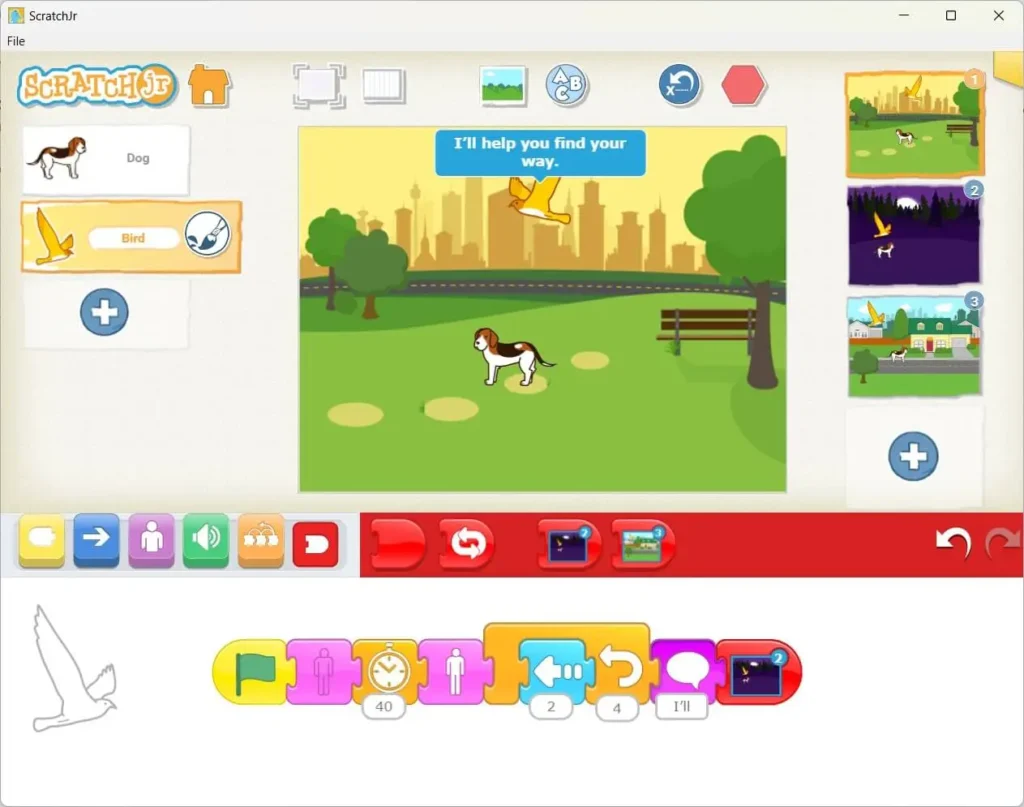
Scene 1: The Park
- Background: A sunny park.
- Action: The dog moves to the center and says, “I’m lost! Can someone help?”
- Transition: The bird appears and says, “I’ll help you find your way.”

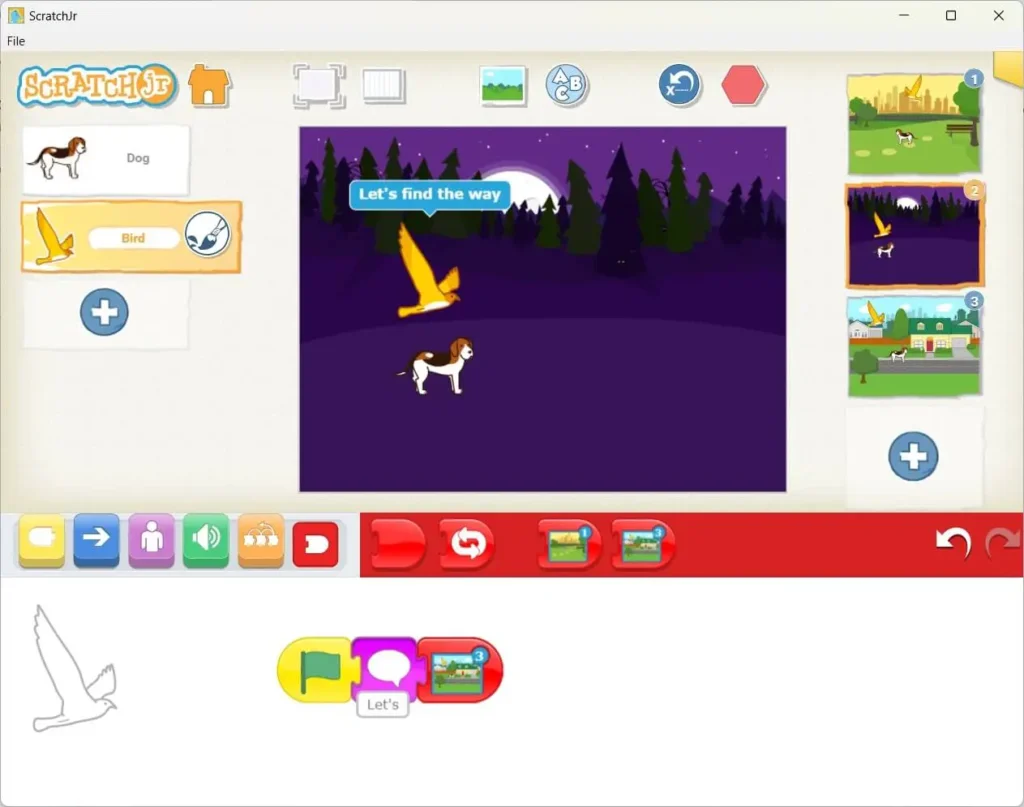
Scene 2: The Forest
- Background: A dark forest.
- Action: The dog and bird walk together. The bird says, “Let’s find the way out.”
- Interactive Element: Tap the dog to hear it bark.
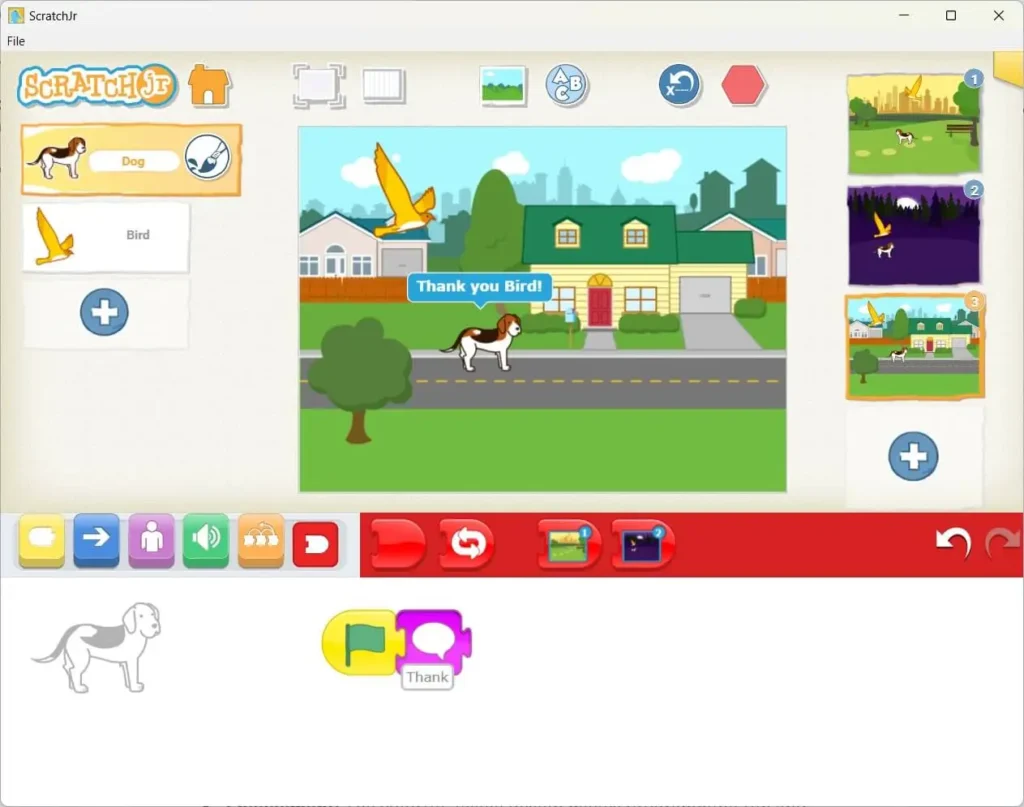
Scene 3: The Home
- Background: A cozy home.
- Action: The dog moves to the door, says, “Thank you, bird!”, and wags its tail.
Ready for Real, Guided Scratch Junior Lessons?
You’ve taken the first step. Our live 1:1 and small-group classes, led by experienced instructors, help your child turn it into real projects.